# 1.- Sanctions Consultation
ℹ️ This module is available for all roles.
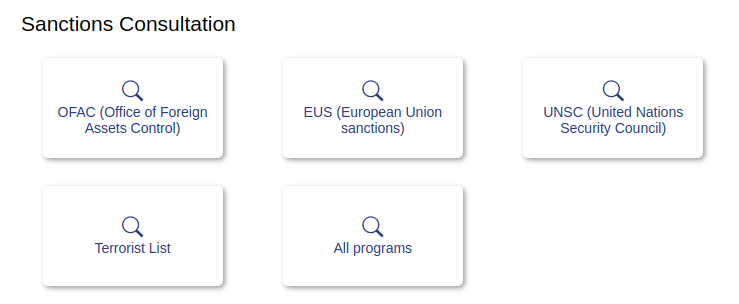
# 1.1- OFAC Module (Office of Foreign Assets Control)
Clicking on the OFAC module presents the following form that allows users to perform the individual search of individuals or companies in the list of sanctioned of that organization.
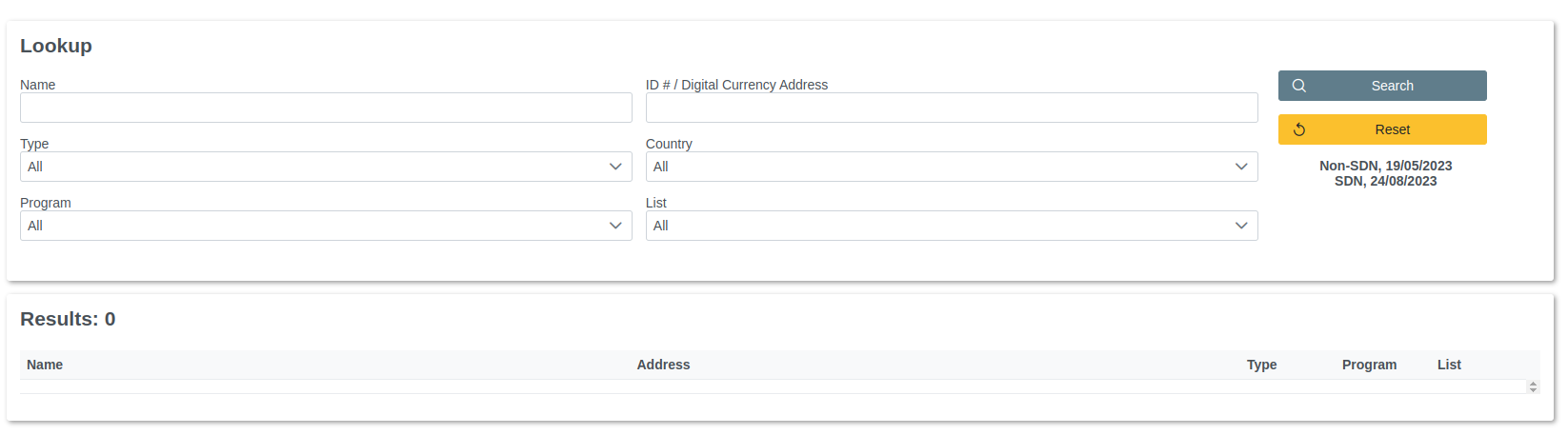
# 1.1.1- Form Components
| Label | Type | Description |
|---|---|---|
| Name | String | Field to enter the names of individuals or organizations to be included as a search criterion. It could become empty if the information is not available. |
| Type | Selection list | Allows you to select the types of entities to be included as a search criteria or select all entities that the organization manages. |
| Program | Selection list | Allows you to select a particular sanction program to be included as a search criterion or select all the programs that the organization manages. |
| # ID / # passport | Alphanumeric | Field to enter the ID of the identity card or passport number to be included as a search criterion. It could be left empty if the information is not available. |
| Contry | Selection list | Allows you to select the country to be included as a search criterion or to search in all countries. |
| List | Selection list | Allows you to select the search criteria corresponding to the list SDN, Non-SDN or both. |
| Search Button | Command button | Command button that allows searching according to previously established criteria. |
| Reset Button | Command button | Command button that allows you to clean the form and the results table to repeat the search with other parameters. |
| Informative text | String | See the list name and the date of the last update. |
| Results | Table | Shows the number of matches and the product data of the search. |
# 1.1.2- Step by Step to Search
✅ 1. Configure the search parameters according to the data you have.
✅ 2. Click the search command button.
✅ 3. Wait for the system to run the search algorithm and present the results.
✅ 4. Review the results found by the system under the requested criteria.
✅ 5. In the results table click the found item that is of your interest.
✅ 6. Review the data in the pop-up window presented by the system.
✅ 7. After reviewing the detail close the pop-up window by clicking on any of the command buttons used for that purpose.
✅ 8. If you want to perform another search with other criteria, click the Reset command button to clear the search form and repeat the procedure from step 1.
✅ 9. In case you do not want to run more searches in this module click on the icon identified as HOME at the top right of the page to return to the main screen of the system.
# 1.2- EUS Module (European Union sanctions)
Clicking on the EUS module presents the following form that allows users to perform the individual search of individuals or companies in the list of sanctioned of that organization.
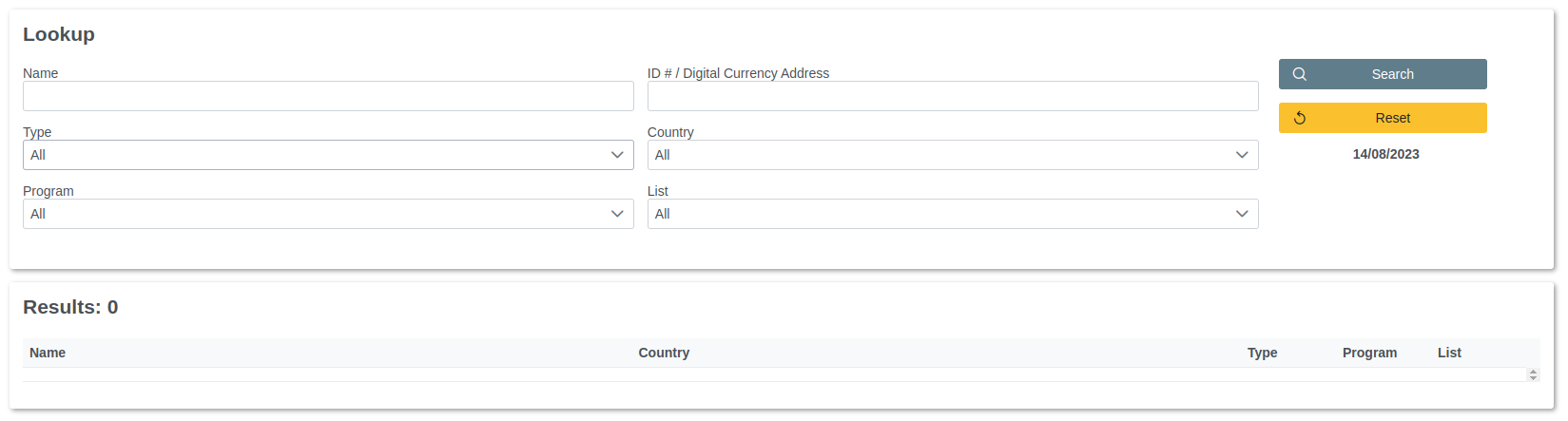
# 1.2.1- Form Components
| Label | Type | Description |
|---|---|---|
| Name | String | Field to enter the names of individuals or organizations to be included as a search criterion. It could become empty if the information is not available. |
| Type | Selection list | allows you to select the types of entities to be included as a search criteria or select all entities that the organization manages. |
| Program | Selection list | Allows you to select a particular sanction program to be included as a search criterion or select all the programs that the organization manages. |
| # ID / # passport | Alphanumeric | Field to enter the ID of the identity card or passport number to be included as a search criterion. It could be left empty if the information is not available. |
| Contry | Selection list | Allows you to select the country to be included as a search criterion or to search in all countries. |
| List | Selection list | Allows you to select the search criteria corresponding to the list SDN, Non-SDN or both. |
| Search Button | Command button | Command button that allows searching according to previously established criteria. |
| Reset Button | Command button | Command button that allows you to clean the form and the results table to repeat the search with other parameters. |
| Informative text | String | See the list name and the date of the last update. |
| Results | Table | Shows the number of matches and the product data of the search. |
# 1.2.2- Step by Step to Search
✅ 1. Configure the search parameters according to the data you have.
✅ 2. Click the search command button.
✅ 3. Wait for the system to run the search algorithm and present the results.
✅ 4. Review the results found by the system under the requested criteria.
✅ 5. In the results table click the found item that is of your interest.
✅ 6. Review the data in the pop-up window presented by the system.
✅ 7. After reviewing the detail close the pop-up window by clicking on any of the command buttons used for that purpose.
✅ 8. If you want to perform another search with other criteria, click the Reset command button to clear the search form and repeat the procedure from step 1.
✅ 9. In case you do not want to run more searches in this module click on the icon identified as HOME at the top right of the page to return to the main screen of the system.
# 1.3- UNSC Module (United Nations Security Council)
Clicking on the UNSC module presents the following form that allows users to perform the individual search of individuals or companies in the list of sanctioned of that organization.
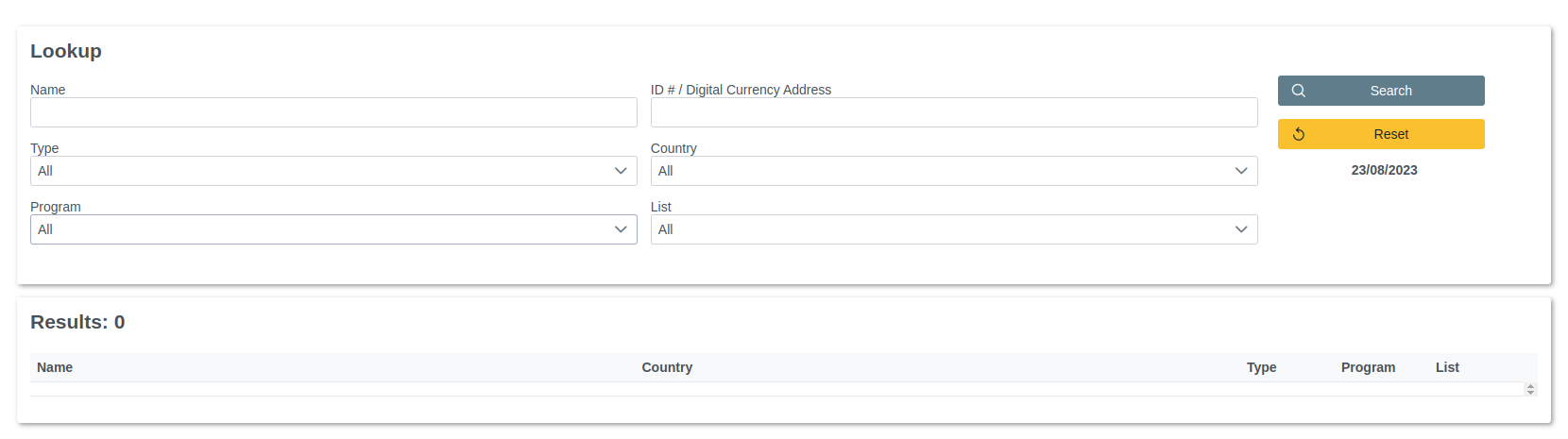
# 1.3.1- Form Components
| Label | Type | Description |
|---|---|---|
| Name | String | Field to enter the names of individuals or organizations to be included as a search criterion. It could become empty if the information is not available. |
| Type | Selection list | allows you to select the types of entities to be included as a search criteria or select all entities that the organization manages. |
| Program | Selection list | Allows you to select a particular sanction program to be included as a search criterion or select all the programs that the organization manages. |
| # ID / # passport | Alphanumeric | Field to enter the ID of the identity card or passport number to be included as a search criterion. It could be left empty if the information is not available. |
| Contry | Selection list | Allows you to select the country to be included as a search criterion or to search in all countries. |
| List | Selection list | Allows you to select the search criteria corresponding to the list SDN, Non-SDN or both. |
| Search Button | Command button | Command button that allows searching according to previously established criteria. |
| Reset Button | Command button | Command button that allows you to clean the form and the results table to repeat the search with other parameters. |
| Informative text | String | See the list name and the date of the last update. |
| Results | Table | Shows the number of matches and the product data of the search. |
# 1.3.2- Step by Step to Search
✅ 1. Configure the search parameters according to the data you have.
✅ 2. Click the search command button.
✅ 3. Wait for the system to run the search algorithm and present the results.
✅ 4. Review the results found by the system under the requested criteria.
✅ 5. In the results table click the found item that is of your interest.
✅ 6. Review the data in the pop-up window presented by the system.
✅ 7. After reviewing the detail close the pop-up window by clicking on any of the command buttons used for that purpose.
✅ 8. If you want to perform another search with other criteria, click the Reset command button to clear the search form and repeat the procedure from step 1.
✅ 9. In case you do not want to run more searches in this module click on the icon identified as HOME at the top right of the page to return to the main screen of the system.
# 1.4- Terrorist List Module (Government of the Netherlands)
Clicking on the Terrorist List module presents the following form that allows users to perform the individual search of individuals or companies in the list of sanctioned of that organization.
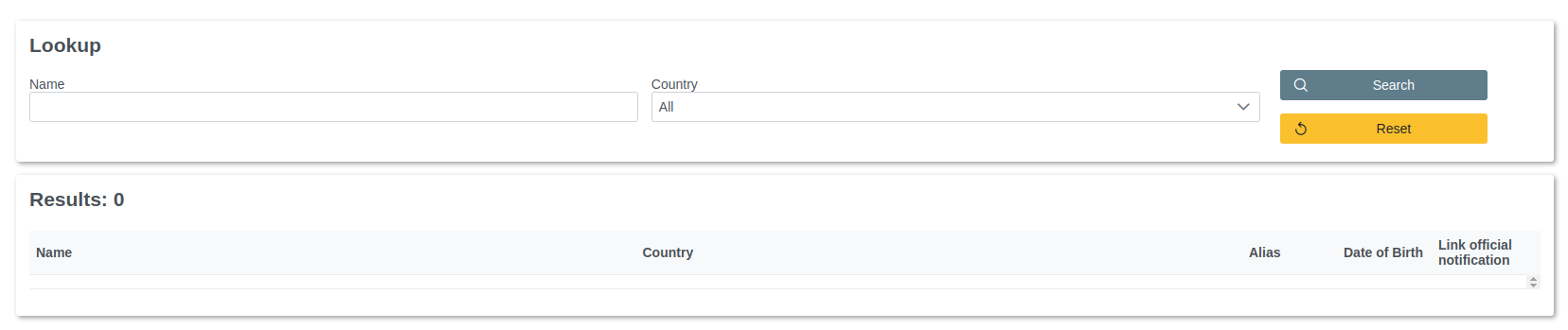
# 1.4.1- Form Components
| Label | Type | Description |
|---|---|---|
| Name | String | Field to enter the names of individuals or organizations to be included as a search criterion. It could become empty if the information is not available. |
| # ID / # passport | Alphanumeric | Field to enter the ID of the identity card or passport number to be included as a search criterion. It could be left empty if the information is not available. |
| Search Button | Command button | Command button that allows searching according to previously established criteria. |
| Reset Button | Command button | Command button that allows you to clean the form and the results table to repeat the search with other parameters. |
| Results | Table | Shows the number of matches and the product data of the search. |
# 1.4.2- Step by Step to Search
✅ 1. Configure the search parameters according to the data you have.
✅ 2. Click the search command button.
✅ 3. Wait for the system to run the search algorithm and present the results.
✅ 4. Review the results found by the system under the requested criteria.
✅ 5. If you want to perform another search with other criteria, click the Reset command button to clear the search form and repeat the procedure from step 1.
✅ 6. In case you do not want to run more searches in this module click on the icon identified as HOME at the top right of the page to return to the main screen of the system.
# 1.5- All programs Module
Clicking on the All programs module presents the following form that allows users to perform the individual search of individuals or companies in the list of sanctioned of that organization.
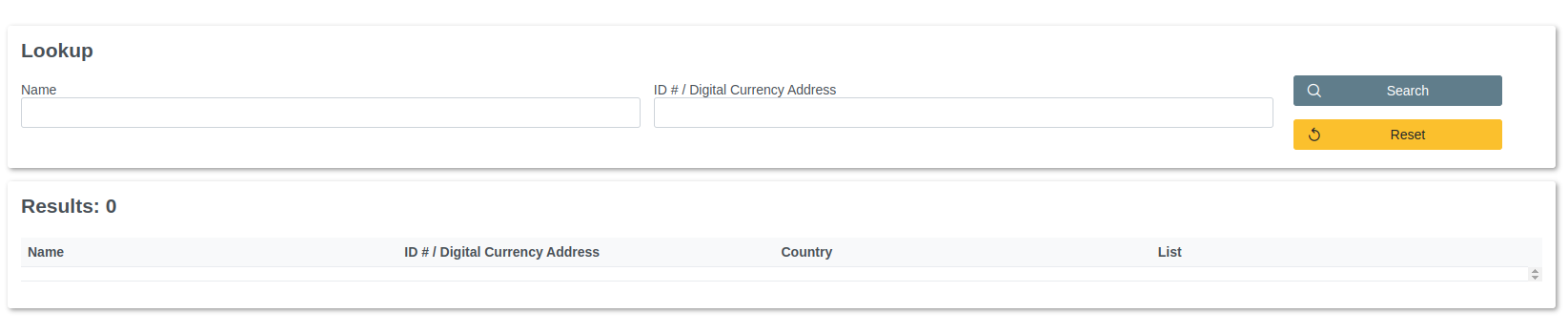
# 1.5.1- Form Components
| Label | Type | Description |
|---|---|---|
| Name | String | Field to enter the names of individuals or organizations to be included as a search criterion. It could become empty if the information is not available. |
| # ID / # passport | Alphanumeric | Field to enter the ID of the identity card or passport number to be included as a search criterion. It could be left empty if the information is not available. |
| Search Button | Command button | Command button that allows searching according to previously established criteria. |
| Reset Button | Command button | Command button that allows you to clean the form and the results table to repeat the search with other parameters. |
| Results | Table | Shows the number of matches and the product data of the search. |
# 1.5.2- Step by Step to Search
✅ 1. Configure the search parameters according to the data you have.
✅ 2. Click the search command button.
✅ 3. Wait for the system to run the search algorithm and present the results.
✅ 4. Review the results found by the system under the requested criteria.
✅ 5. If you want to perform another search with other criteria, click the Reset command button to clear the search form and repeat the procedure from step 1.
✅ 6. In case you do not want to run more searches in this module click on the icon identified as HOME at the top right of the page to return to the main screen of the system.