# 1.- DashBoard
ℹ️ This module is only available to users with manager and administrator role.
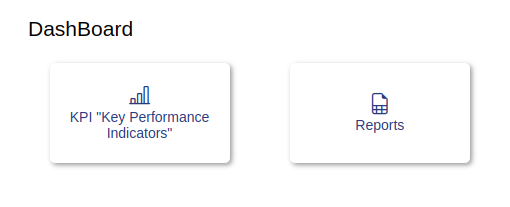
# 1.1- KPI Module
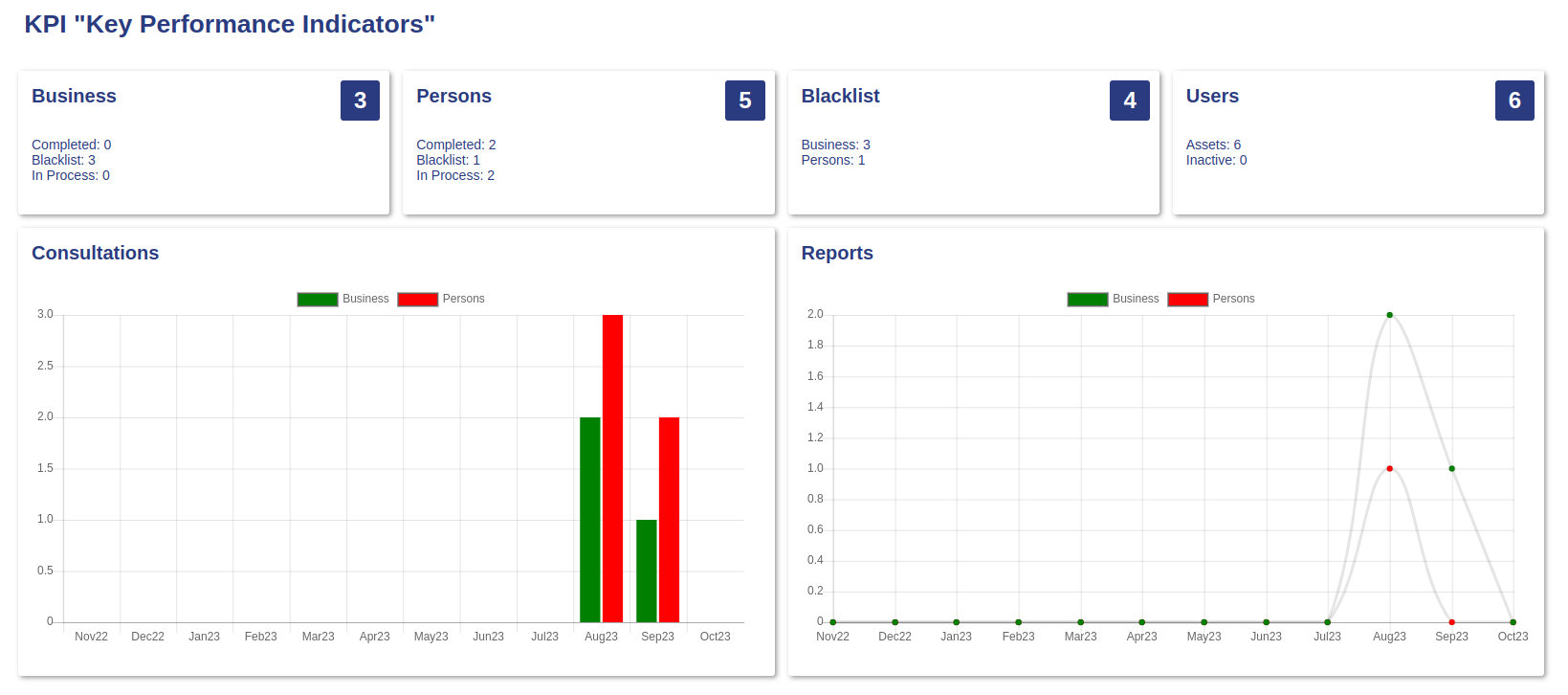
Clicking on the KPI Module present the performance indicators used by the organization to monitor and control system processes.
# 1.1.1- Components
| Label | Type | Description |
|---|---|---|
| Business | Card | Business with due diligence (KYB). |
| Persons | Card | Persons with due diligence KYC. |
| Blacklist | Card | Blacklisted people or businesses. |
| Users | Card | System users |
| Consultations | Graph | Graph of number of Business/Persons with due diligence KYC. |
| Reports | Graph | Graph of number of Reports. |
# 1.2- Reports Module
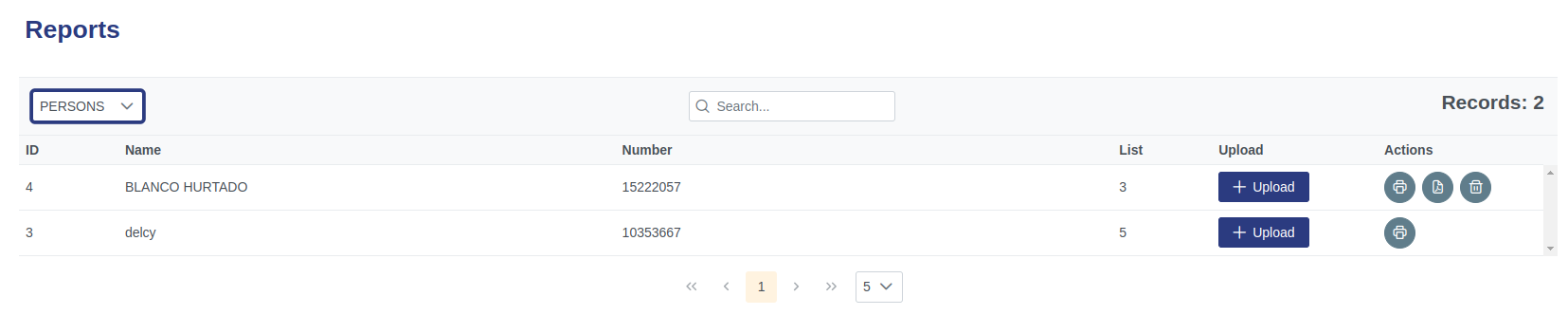
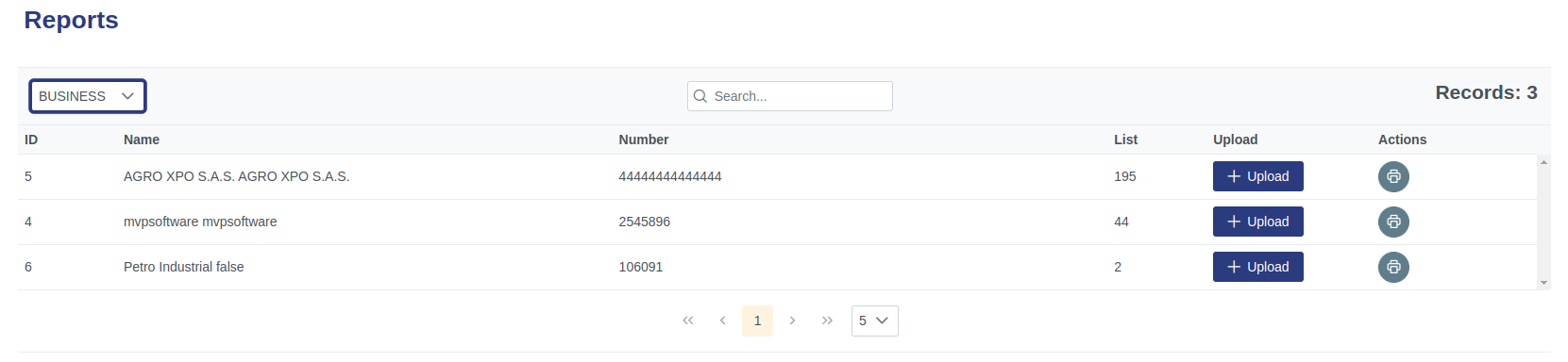
Clicking on the Reports Module present the elements to generate the different reports managed by the organization for printing in pdf format.
# 1.2.1- Components
| Icon | Label | Type | Description |
|---|---|---|---|
| ➖ | Records | Table | Show list person/business. |
| ➖ | ID | Table field | Show ID person/business. |
| ➖ | Name | Table field | Show Name person/business. |
| ➖ | Number | Table field | Show Number person/business. |
| ➖ | List | Table field | Show # list person/business. |
| ➖ | Upload | Table field | Show command button upload. |
| ➖ | Actions | Table field | Show actions button. |
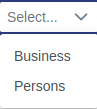 | selection list | List | Selection list person/business. |
 | Search element | Command | Search person/business. |
 | Upload Button | Command button | Upload file signed. |
 | Print Button | Command button | Print Report unsigned. |
 | View Button | Command button | View Report signed. |
 | Delete Button | Command button | Delete Report signed. |
# 1.2.2- Step by step to generate a report.
✅ 1. Select person or business from the selection list.
✅ 2. List the name of the person/business you want to report.
✅ 3. Click the print command button on the right.
✅ 4. Check the generated report data in the pop-up window.
✅ 5. Save the document to any folder of your interest.
# 1.2.3- Step by step to upload a report.
✅ 1. Click the upload button and locate the signed document you want to append on your hard drive.
✅ 2. Select the signed document.
✅ 3. Click the OK button on the pop-up screen.
✅ 4. Verify that the signed document buttons and the delete document button appear in the actions column.
# 1.2.4- Step by step to view a report.
✅ 1. Select person or business from the list.
✅ 2. Click the view button of the signed document that you want to verify.
✅ 3. Please check the document.
# 1.2.5- Step by step to delete a report.
✅ 1. Select person or business from the list.
✅ 2. Click in the delete button.