# 1.- Parameters
ℹ️ This module is only available to users with manager and administrator role.
# 1.1- Online-Update Data Source
Clicking on the modules shows the view that allows the administrator to edit the message with the code to recover the password.
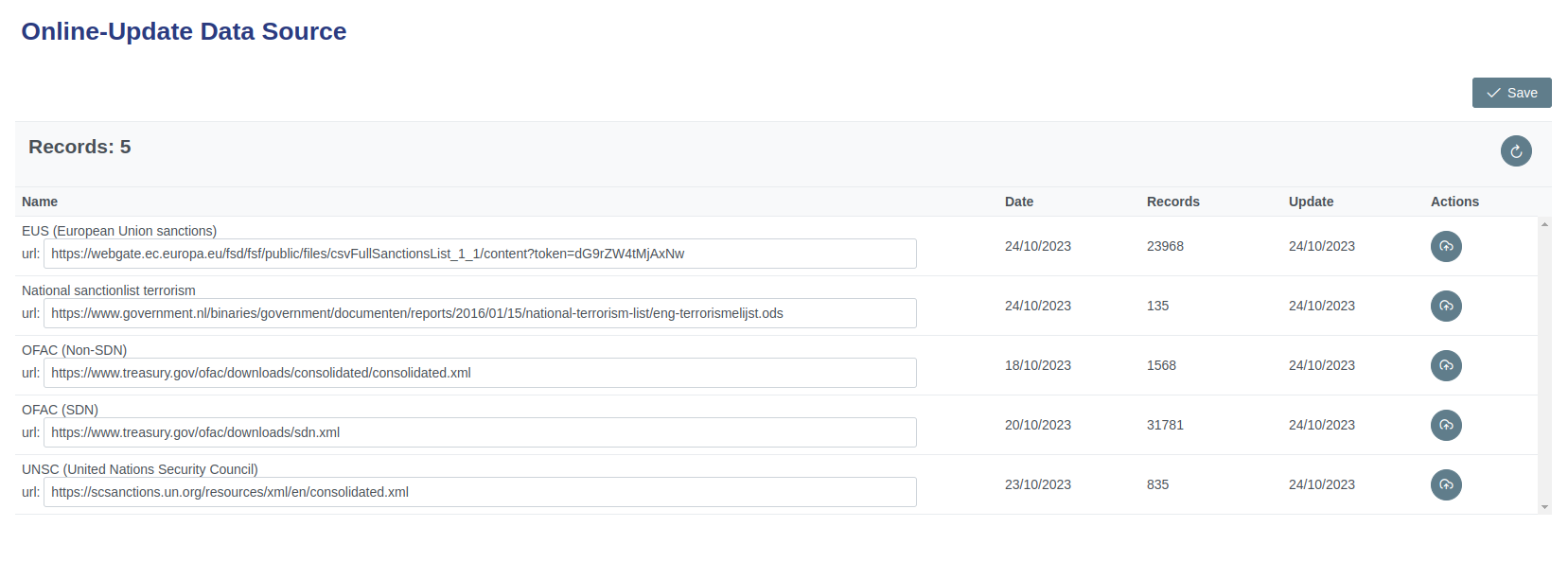
# 1.1.1- Components
| Icon | Label | Type | Description |
|---|---|---|---|
| ➖ | Records | Table | Show element of modules. |
| ➖ | Name | Table field | Show Name of the organization and download URL. |
| ➖ | Date | Table field | Show Date of update of the list by the organization. |
| ➖ | Record | Table field | Show Number of records. |
| ➖ | Update | Table field | Show Update date by the system. |
| ➖ | Actions | Table field | Show Command button to update lists. |
 | Refresh Button | Command button | Refreshes the table. |
 | Save Button | Command button | Save action. |
 | Update Button | Command button | Update List. |
# 1.1.2- Step by Step Update URL
✅ 1. Go to the organization page that you want to update the URL.
✅ 2. Verify and validate the URL.
✅ 3. Copy the new URL.
✅ 4. Paste the new URL into the appropriate field.
✅ 5. Click the save command button for the changes to take effect.
✅ 6. Verify that the change was executed successfully.
✅ 7. If you need to make another change repeat from step 1.
✅ 8. If you need to make another change repeat from step 1. If not continue with step 6.
✅ 9. In case you do not want use this module click on the icon identified as HOME at the top right of the page to return to the main screen of the system.
# 1.1.3- Step by Step Update List
✅ 1. Click the command button to update.
✅ 2. Wait for the list update process to run. It may take a while depending on the number of records.
✅ 3. Go to the website of the organization whose list was updated and check the dates of updating their lists.
✅ 4. Compare the update dates of the lists with the one displayed by the system.
✅ 5. If the dates match and you need to make another update repeat from step 1. If you do not run step 6.
✅ 6. In case you do not want use this module click on the icon identified as HOME at the top right of the page to return to the main screen of the system.
# 1.2- Security Code
Clicking on modules presents the view that allows the administrator to manage system modules.
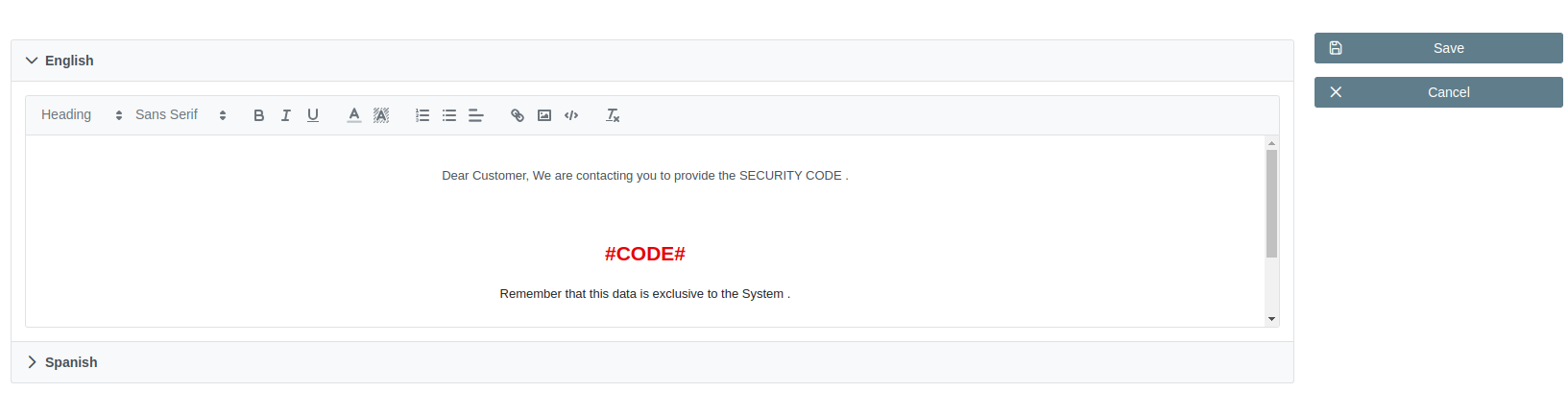
# 1.2.1- Components
| Icon | Label | Type | Description |
|---|---|---|---|
| ➖ | Menssage area | Form | Show menssage of code. |
| Save Button | Command button | Save menssage. |
 | Cancel Button | Command button | cancels the editing of text |
# 1.2.2- Step by Step Update menssage
✅ 1. Select the language of the message you want to edit, using its tag that identifies the language of the message.
✅ 2. Edit the message in the corresponding language within the text area without modifying the #CODE#.
✅ 3. Check the edited message. If you agree process to click the save command button. If you do not agree, click the cancel button.
✅ 4. In case you do not want use this module click on the icon identified as HOME at the top right of the page to return to the main screen of the system.